Open a drawing
Press Open a drawing and choose a .DWG or .DXF file, or drag the file onto the page. The file is uploaded privately and prepared on our servers; this takes a few seconds. When it is ready, the link in the address bar is the drawing's own link.
Files up to 95 MB. .DWG from AutoCAD R13 onwards and .DXF are supported. See supported formats.
Layers
The Layers panel lists every layer with its colour. Click a layer to hide or show it, type in the search box to filter, and use Show all to bring every layer back. To see a single layer, select an object and press Show only this layer in its properties card.
Model and layouts
The tabs at the bottom of the screen switch between model space and each layout of the drawing. TrattoCAD opens the same one AutoCAD would open.
Select objects
Click any line, arc, circle, polyline, text or hatch to open its properties card: type, layer, colour, length, angle, radius, area and more, depending on the object.
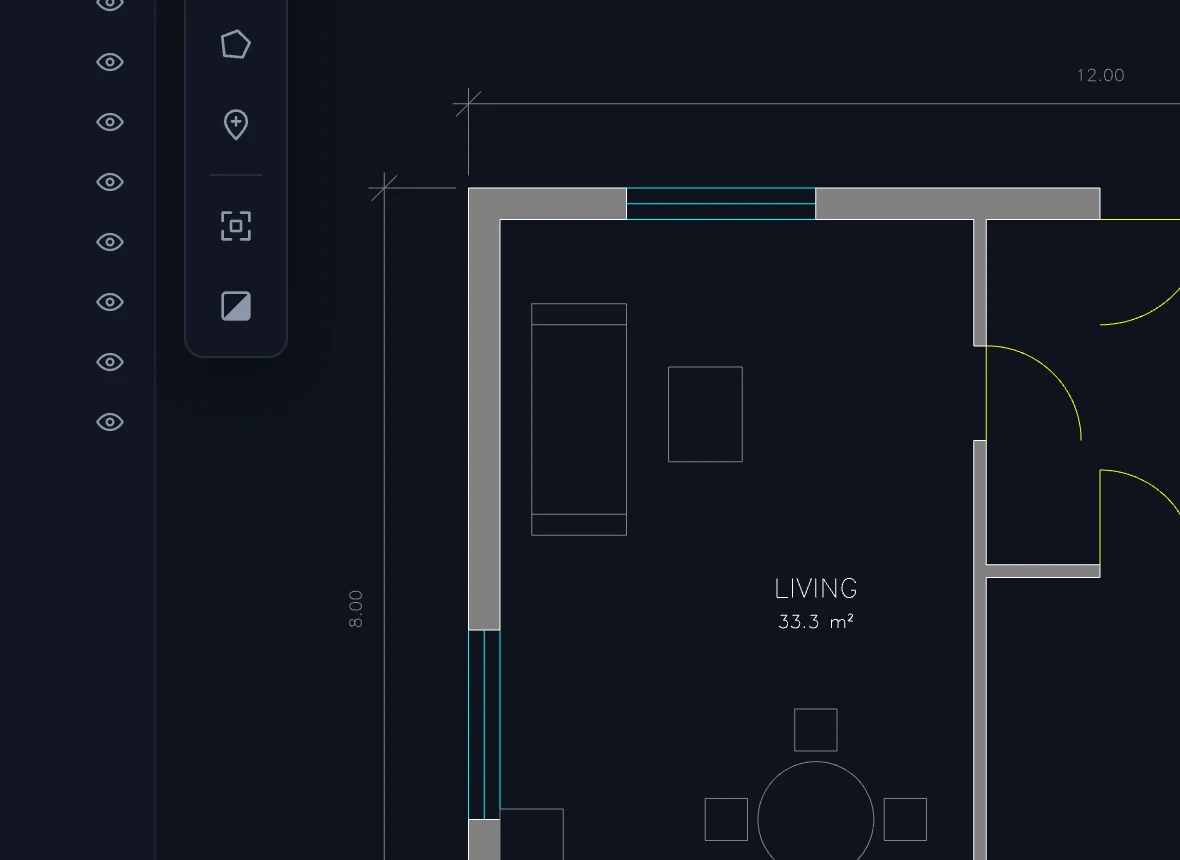
Measure distances and areas
- Press D for distance or A for area.
- Move the cursor near a point. A red marker shows the snap: square for endpoint, triangle for midpoint, circle for centre, cross for intersection.
- Click to add points. The panel shows the total, the last segment and its angle; for areas, the area and perimeter.
- Press Enter or double-click to finish, Esc to clear.
Print to PDF
Press Print or P. Choose the paper, orientation, area (whole drawing or what you see), scale and the drawing units, then Download PDF. The window tells you how big the drawing will be on paper and warns you if it does not fit.
Keyboard shortcuts
| Key | Action |
|---|---|
| O | Open a drawing |
| D | Measure distance |
| A | Measure area |
| C | Add a comment |
| P | Print to PDF |
| Z | Fit the whole drawing |
| B | Dark or paper background |
| Enter | Finish a measurement |
| Esc | Clear, close or go back to pan |
If something goes wrong
- The file is refused: check that it is a .DWG or .DXF and smaller than 95 MB. .DWG files older than R13 cannot be opened yet.
- Text looks different: TrattoCAD uses its own fonts when the drawing's fonts are not available, so text may be slightly wider or narrower.
- The drawing does not appear: your browser needs WebGL 2; any recent Chrome, Edge, Firefox or Safari has it.
- Still stuck? Write to hello@trattocad.com.
Open your first drawing now.
Free, with no account and nothing to install. Drop a .DWG or .DXF and it is on screen in seconds.
Comments