Pro
3D parts that keep their design intent
Change one dimension and the part follows: holes stay where they belong, the drawing updates and the file stays a .DWG. Three demonstrations in the real editor and on a phone, on parts drawn by our team.
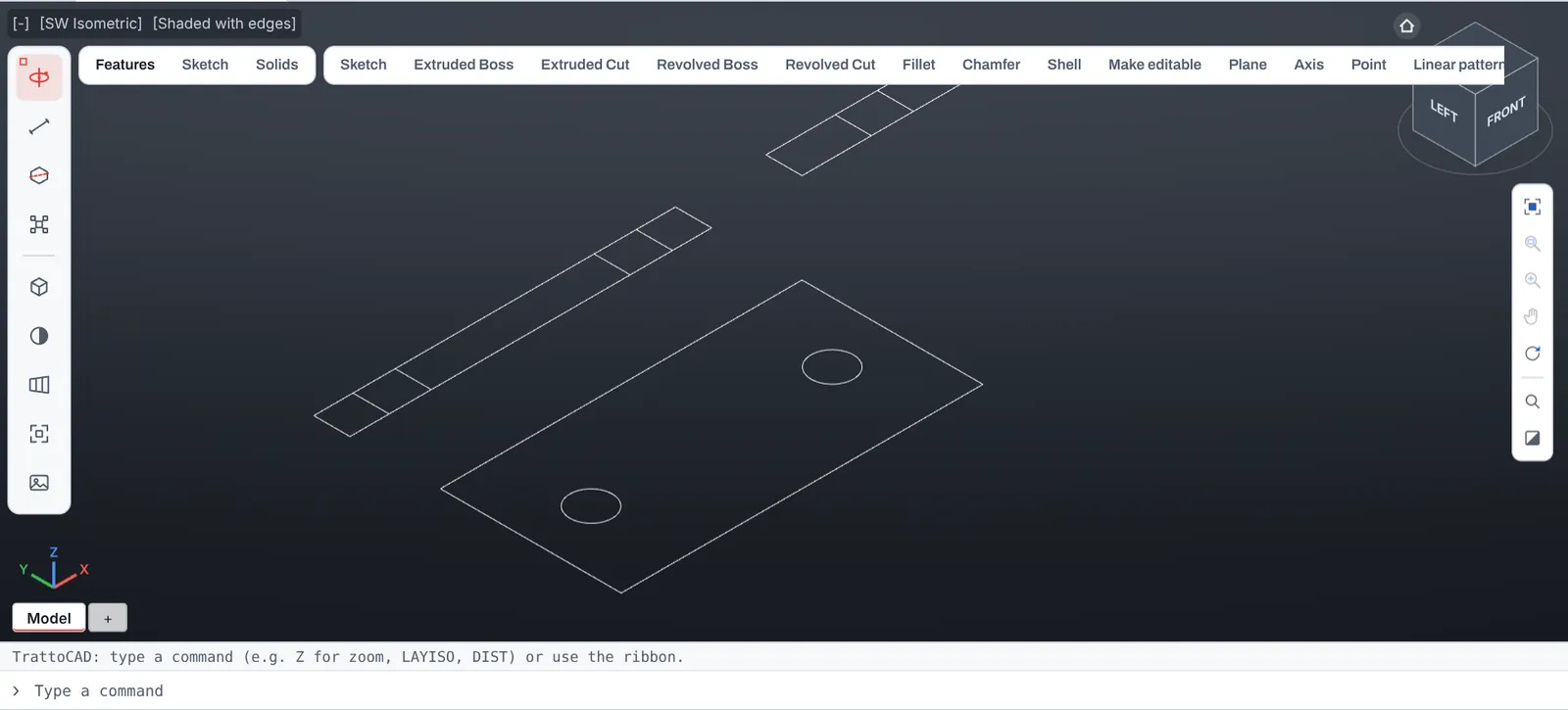
From a 2D drawing to a 3D part
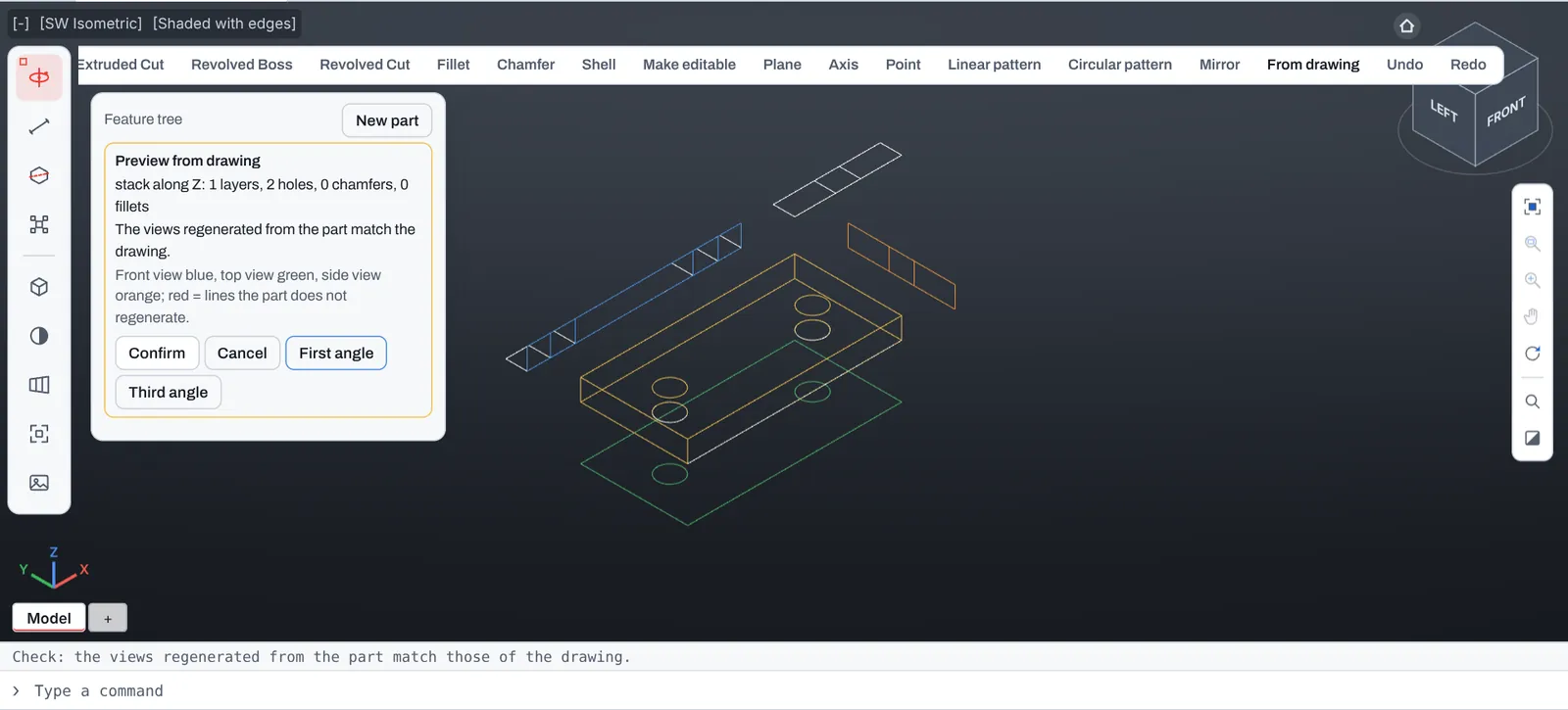
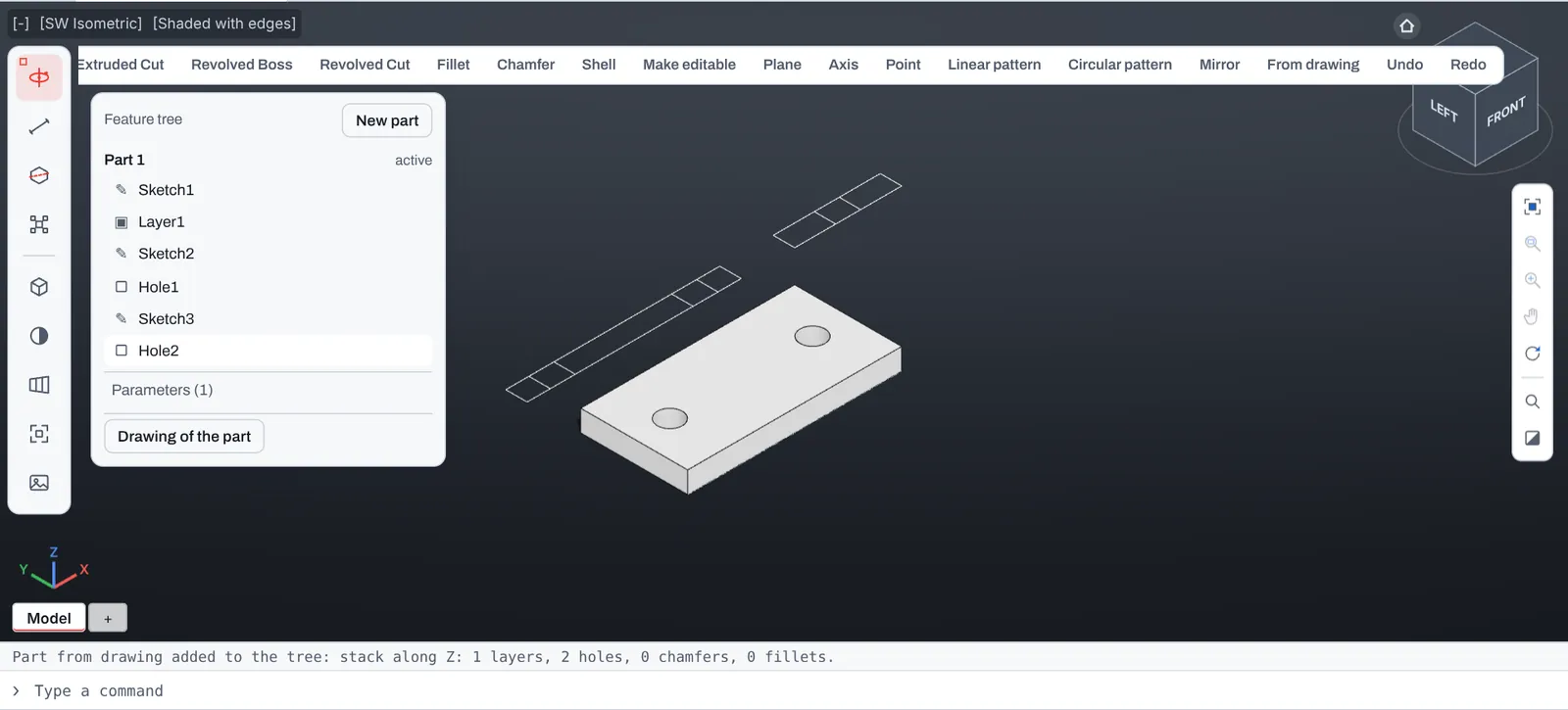
A bracket drawn in 2D, with a top view, a front view and a side view. From drawing builds the part and shows it first as a preview, with the views in colour and a check against the drawing. Confirm puts it in the feature tree.
- The preview changes nothing until you confirm
- Holes found in the views become hole features
- Cancel leaves the drawing as it was
Change a dimension on the drawing
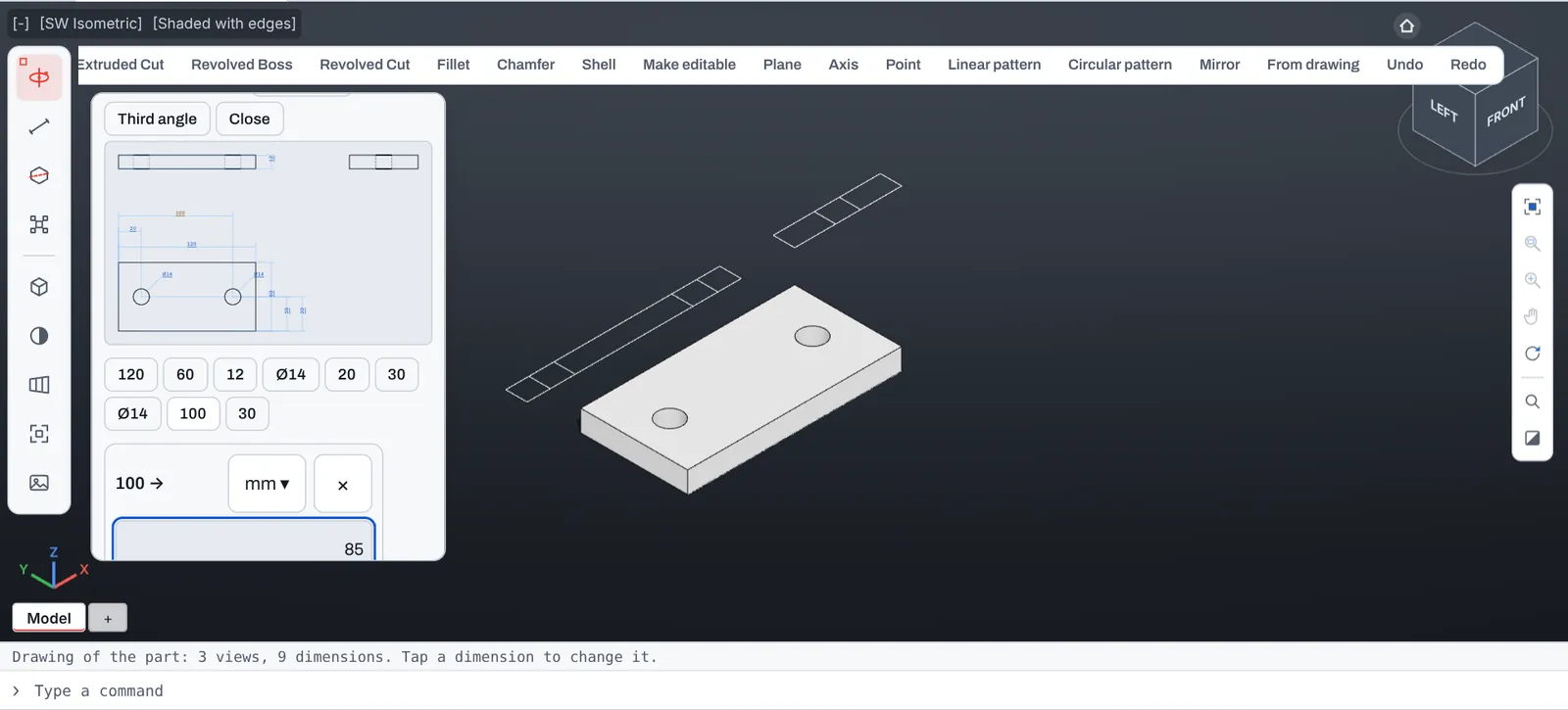
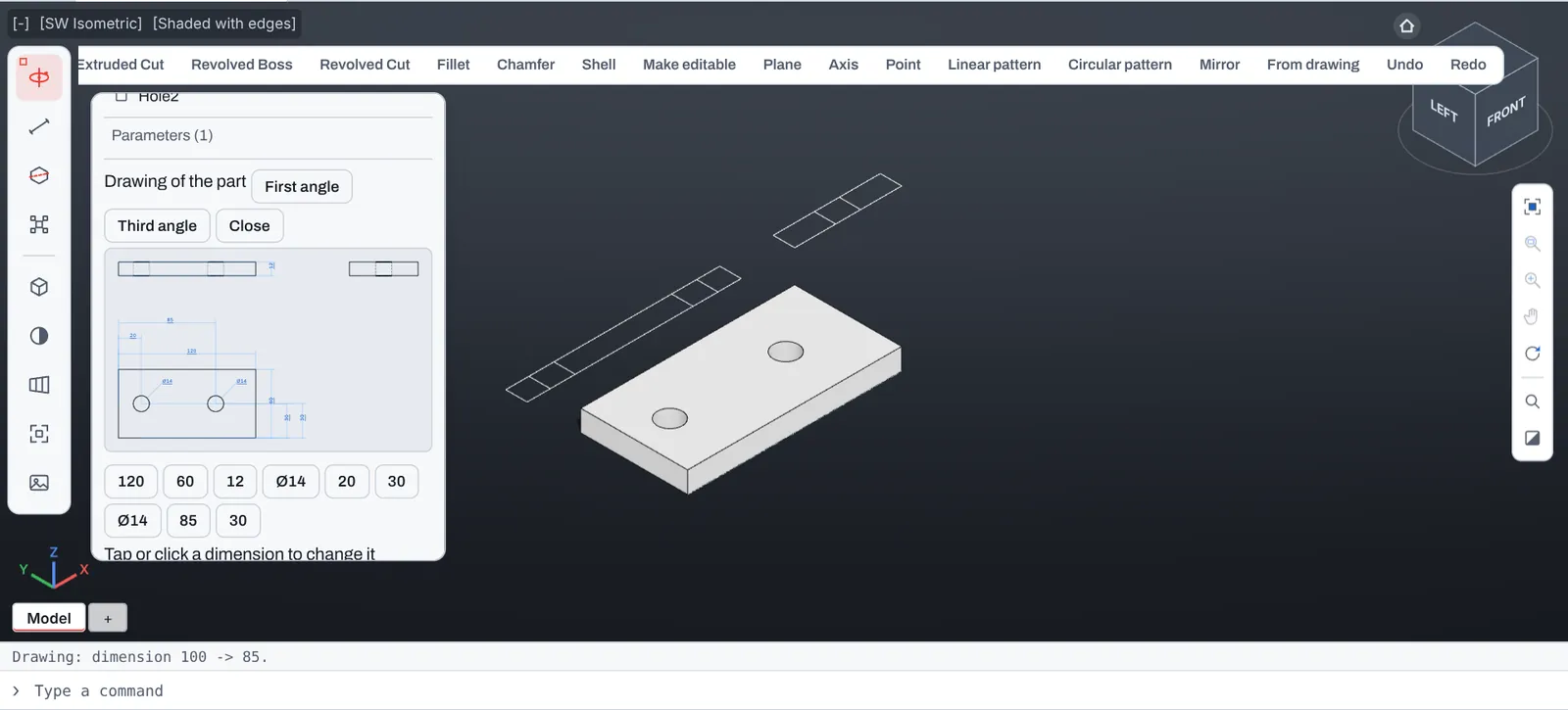
Open the drawing of the part and tap a dimension. Here the second hole moves from 100 to 85 mm from the edge: the part and its three views follow.
- Dimensions that drive the part can be tapped
- Reference dimensions are grey, orphan dimensions red
- The same works with a finger on a phone
A solid with no history becomes editable
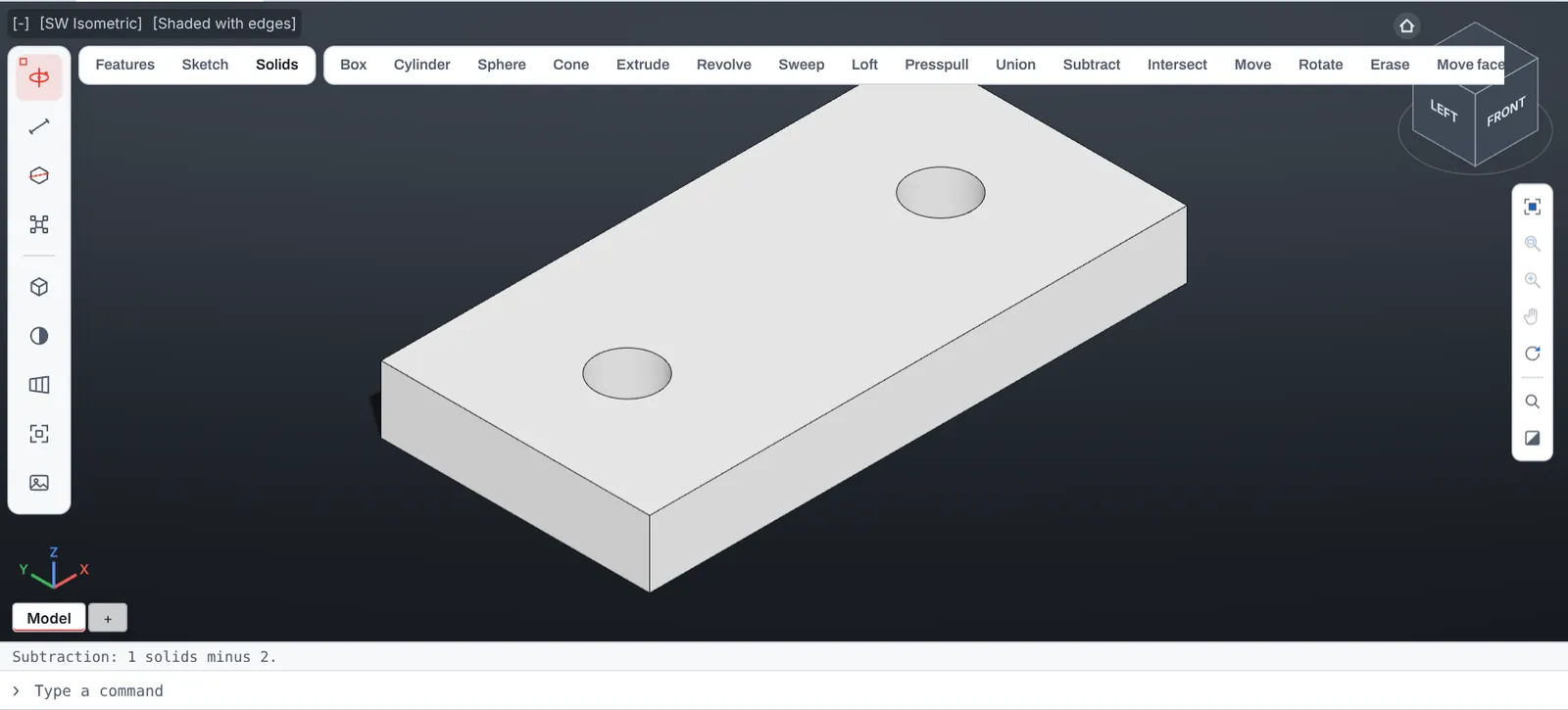
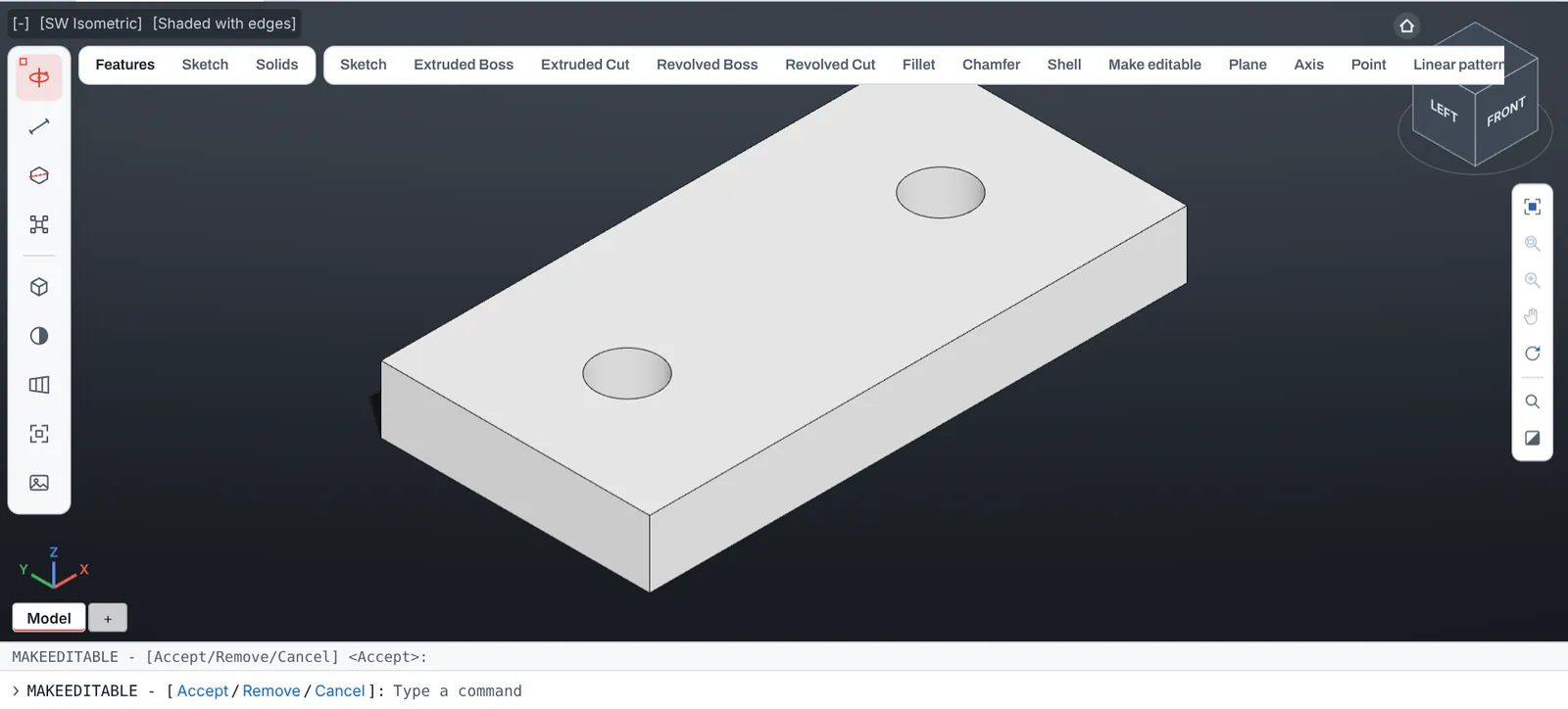
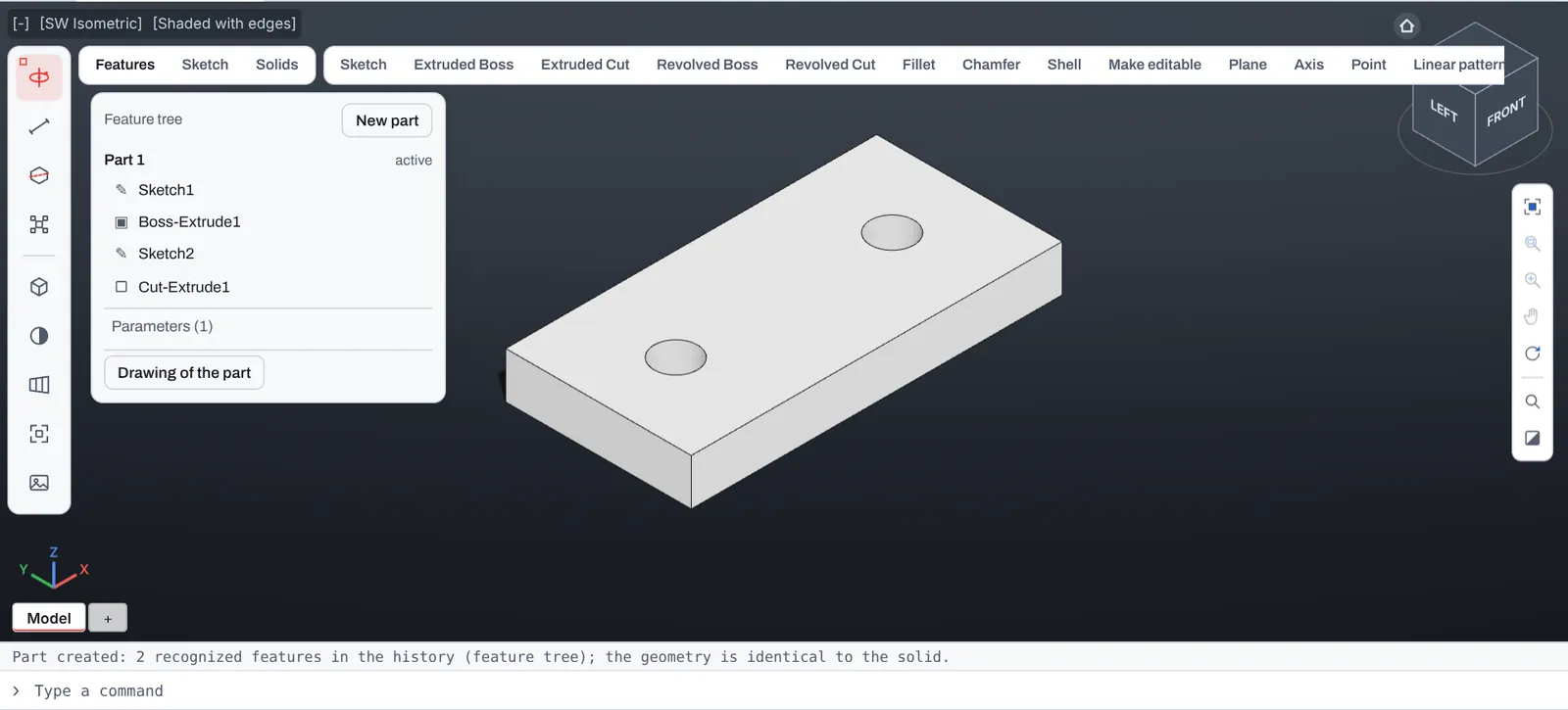
A solid that arrives without its history, from another program or an old drawing, is only a shape. Make editable recognizes its base and its holes and shows them before changing anything. Accept, and the part has a feature tree.
- Recognized features are listed before anything changes
- Remove leaves a feature inside the base
- Undo brings the original solid back
Move a hole
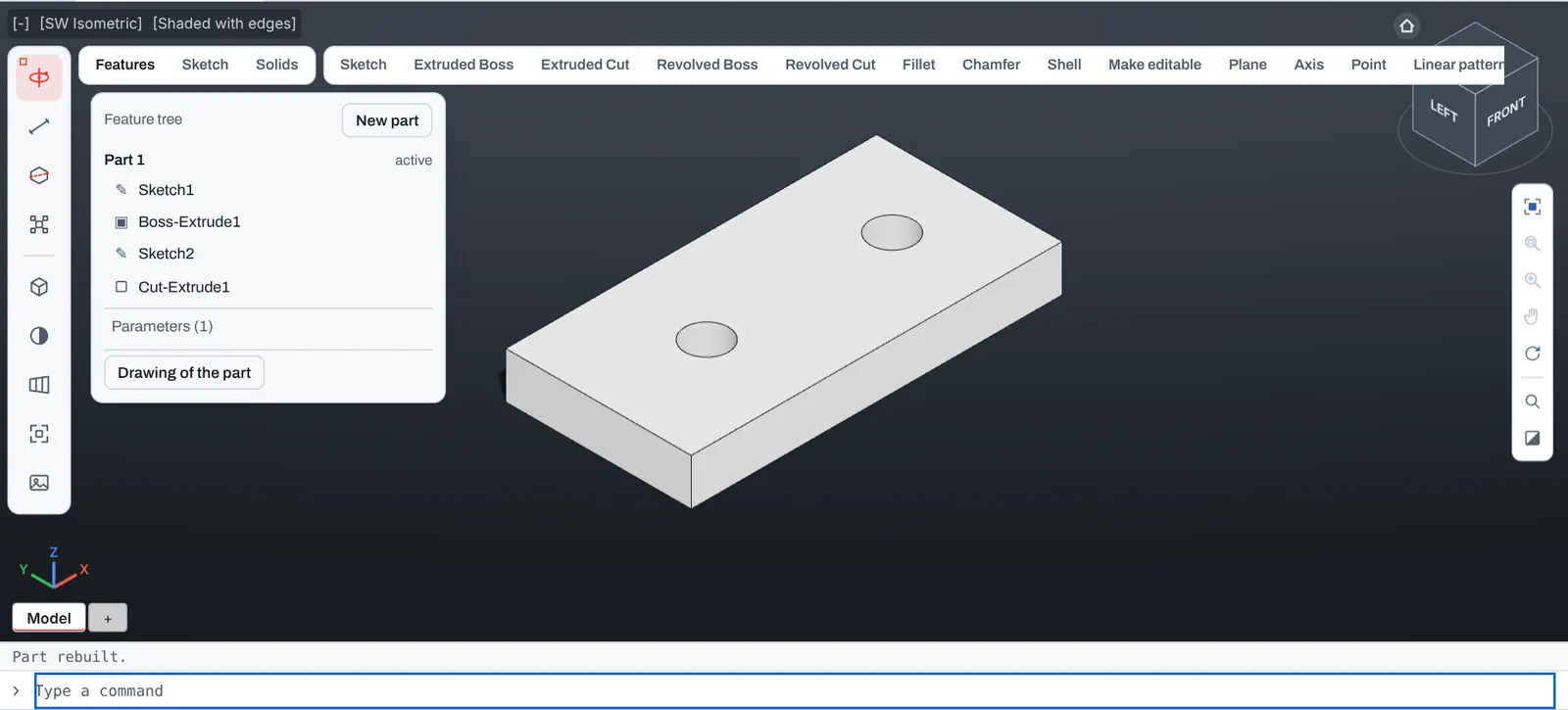
With the feature tree in place, the holes are dimensions like any other. One hole moves 10 mm closer to the other and the part rebuilds.
- Change the dimension in the tree or by typing it
- The part rebuilds in a moment
- Save, and the history travels inside the .DWG
One part, several sizes
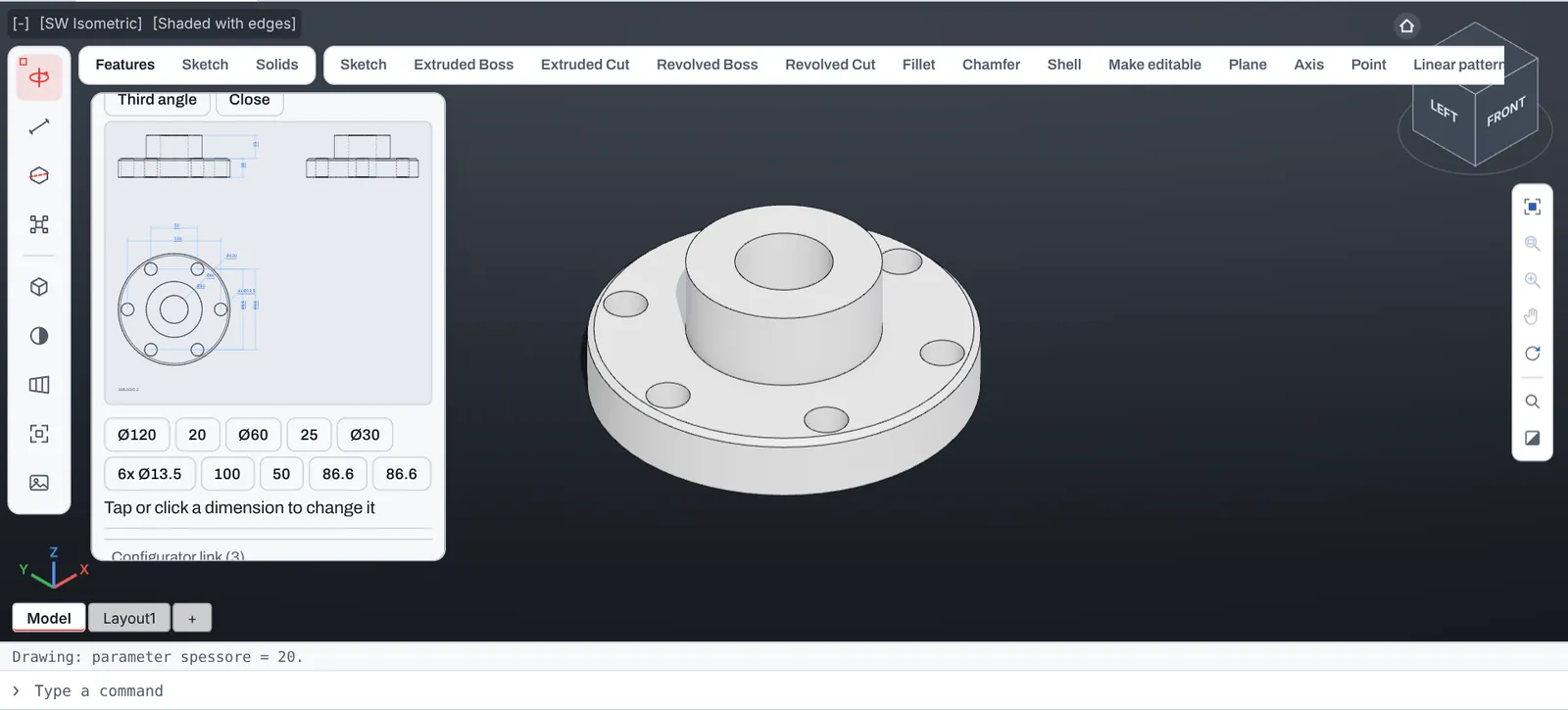
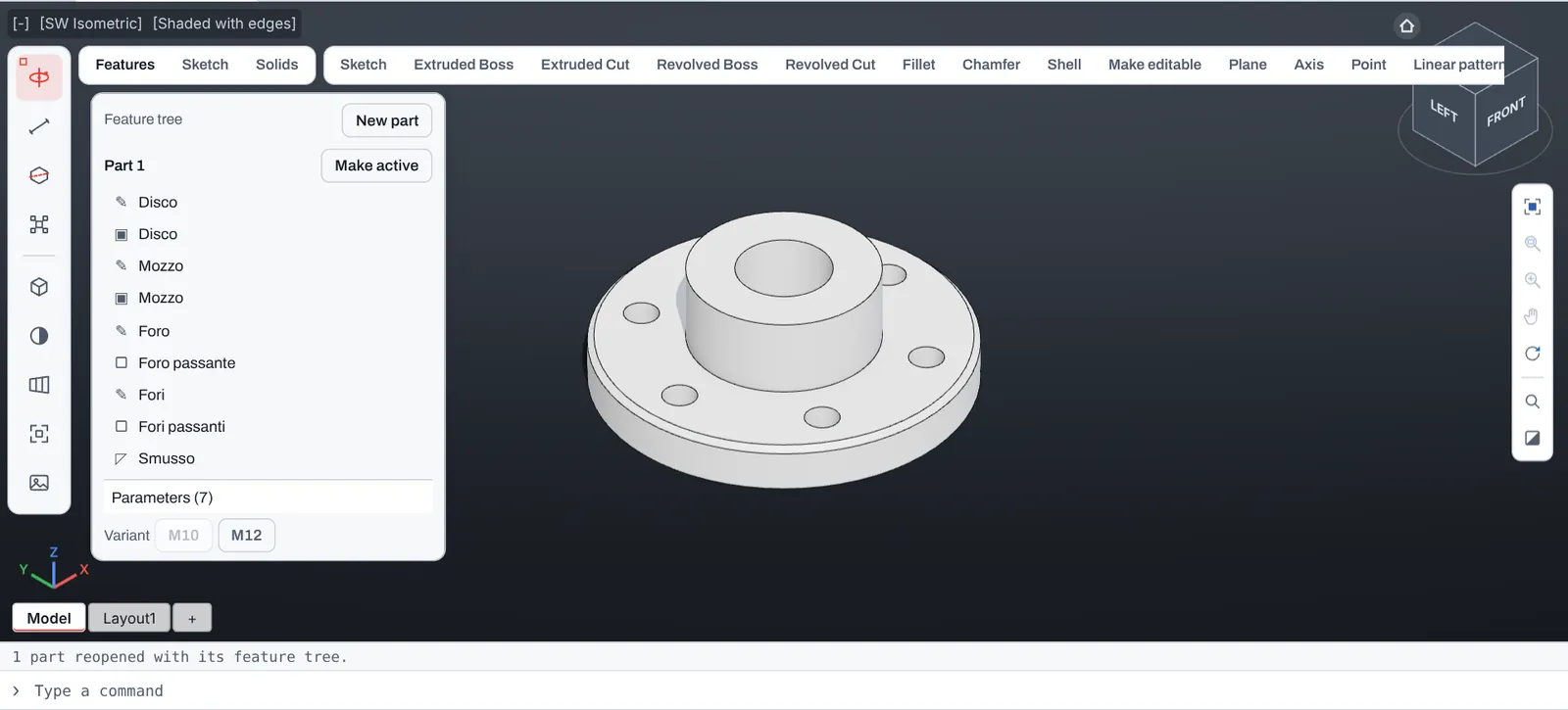
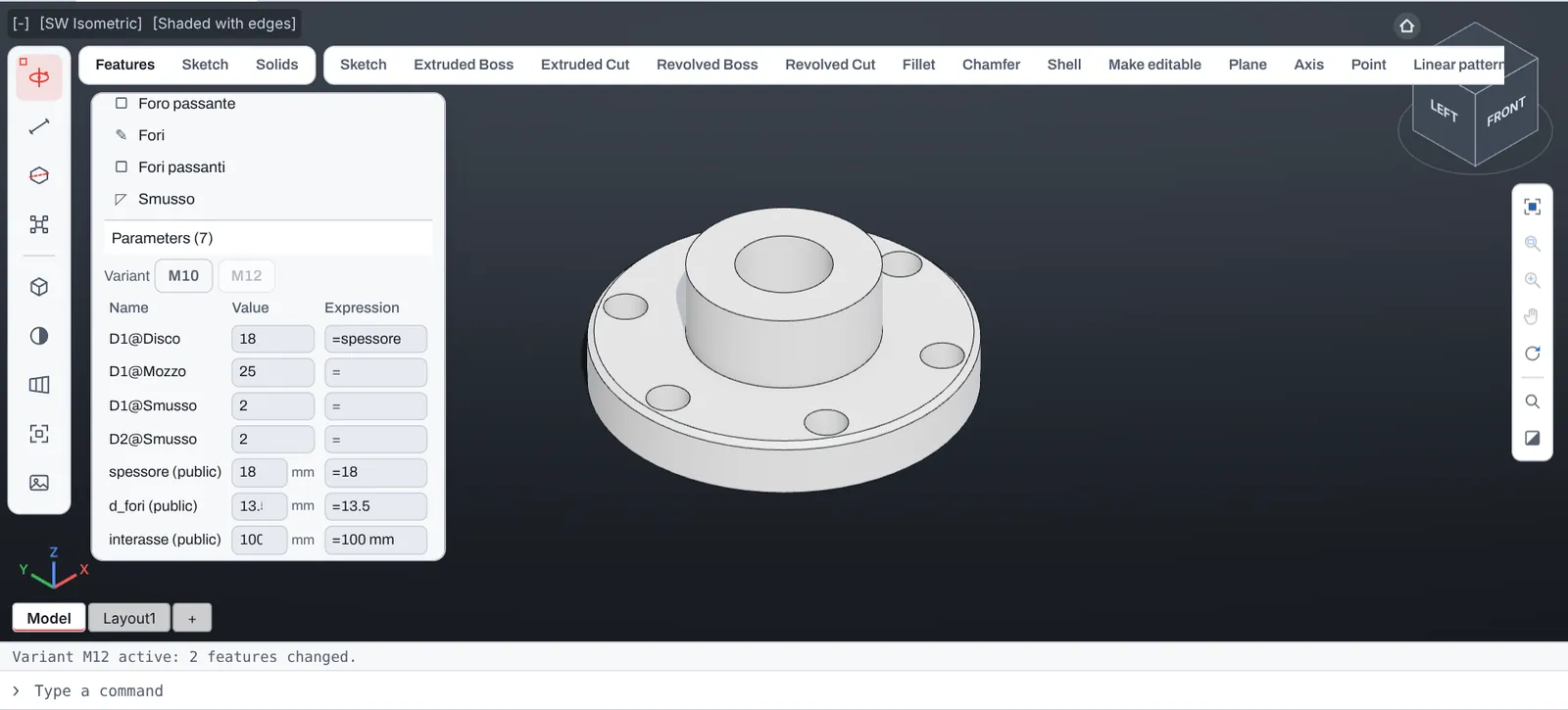
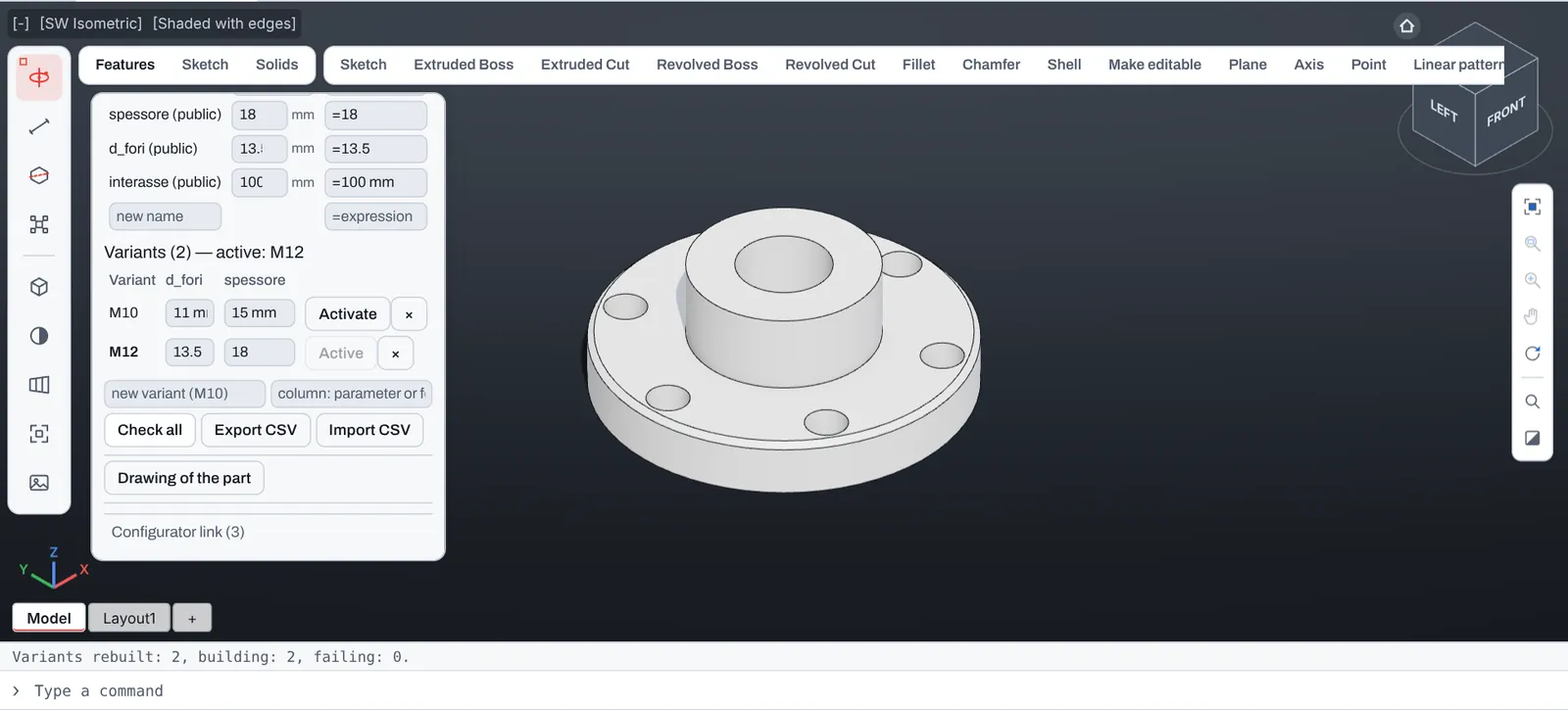
A flange with three named parameters and two variants. One tap switches from M10 to M12; Check all rebuilds every variant and says which ones build.
- Formulas between parameters
- Export and import the table of variants as CSV
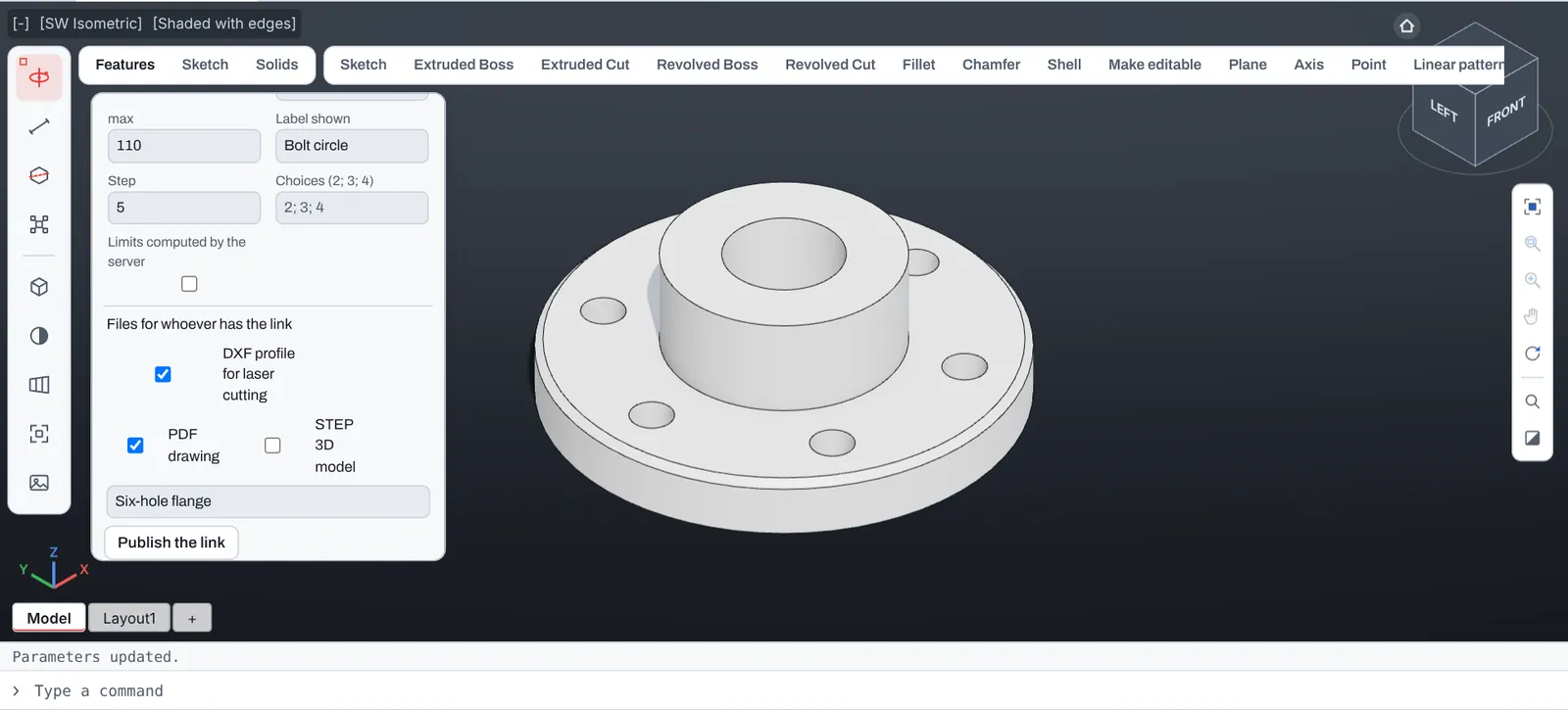
- Limits and public parameters for a configurator link
Send a configurator link
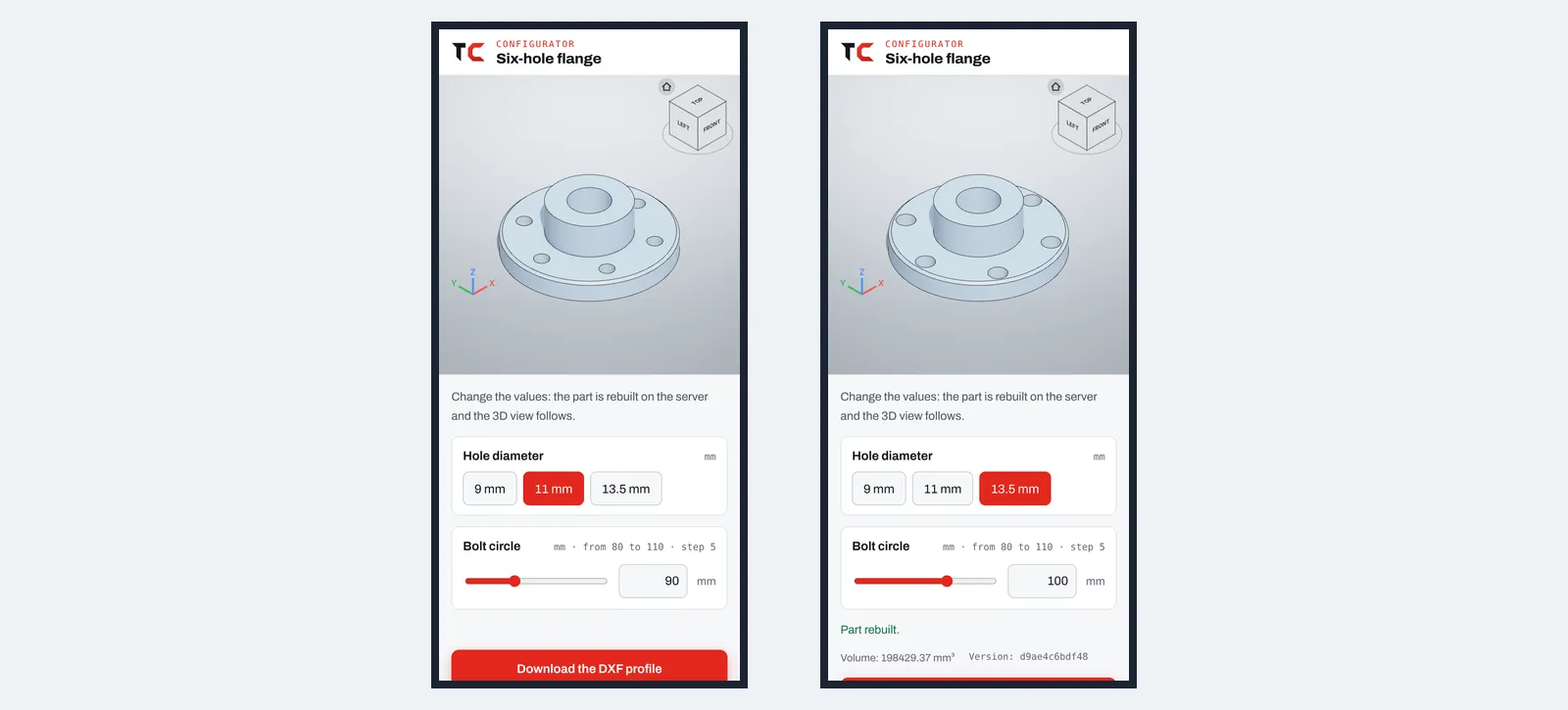
The flange again: the bolt circle and the hole diameter are made public in the Configurator link panel, with limits, a step and three choices. The customer opens the link on a phone, without an account, changes the values, and the part is rebuilt on the server.
- Only the parameters you made public, within your limits
- Nothing to install, no account for the customer
- DXF profile for laser cutting and PDF drawing to download

Still a .DWG
The part is saved as a normal solid in a .DWG that any CAD program opens. Reopened in TrattoCAD, its feature tree, parameters and variants come back.
On any device
The same tree and the same panels in the browser on a computer, a tablet or a phone, with nothing to install.
A guide for every stage
Sketch, constraints, formulas, features, variants, the drawing, versions and the configurator link, step by step. Read the guide.
Open your first drawing now.
Free, with no account and nothing to install. Drop a .DWG or .DXF and it is on screen in seconds.